How to make a copy
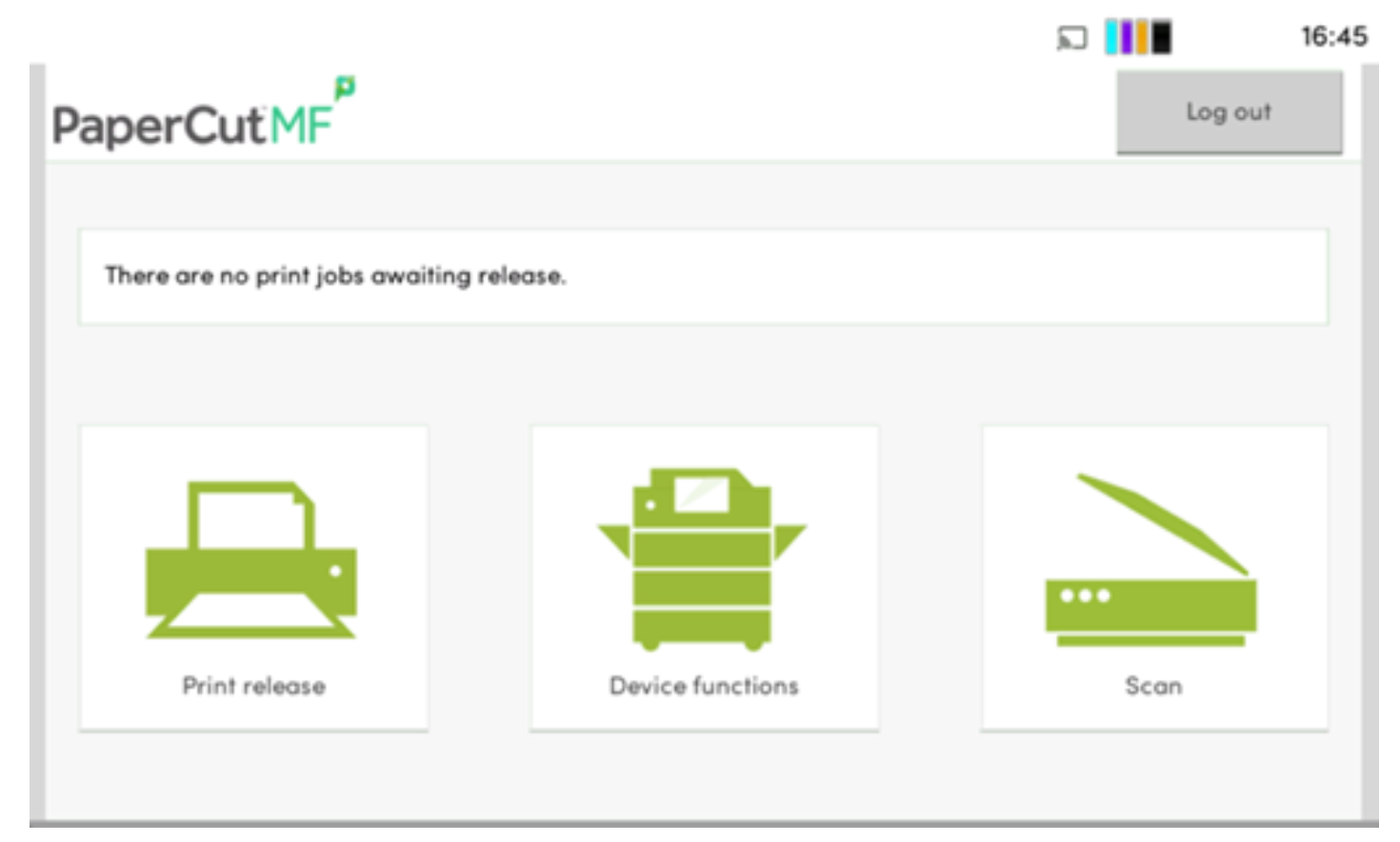
1. Swipe your Triton Card to sign into the printer and select Device Functions
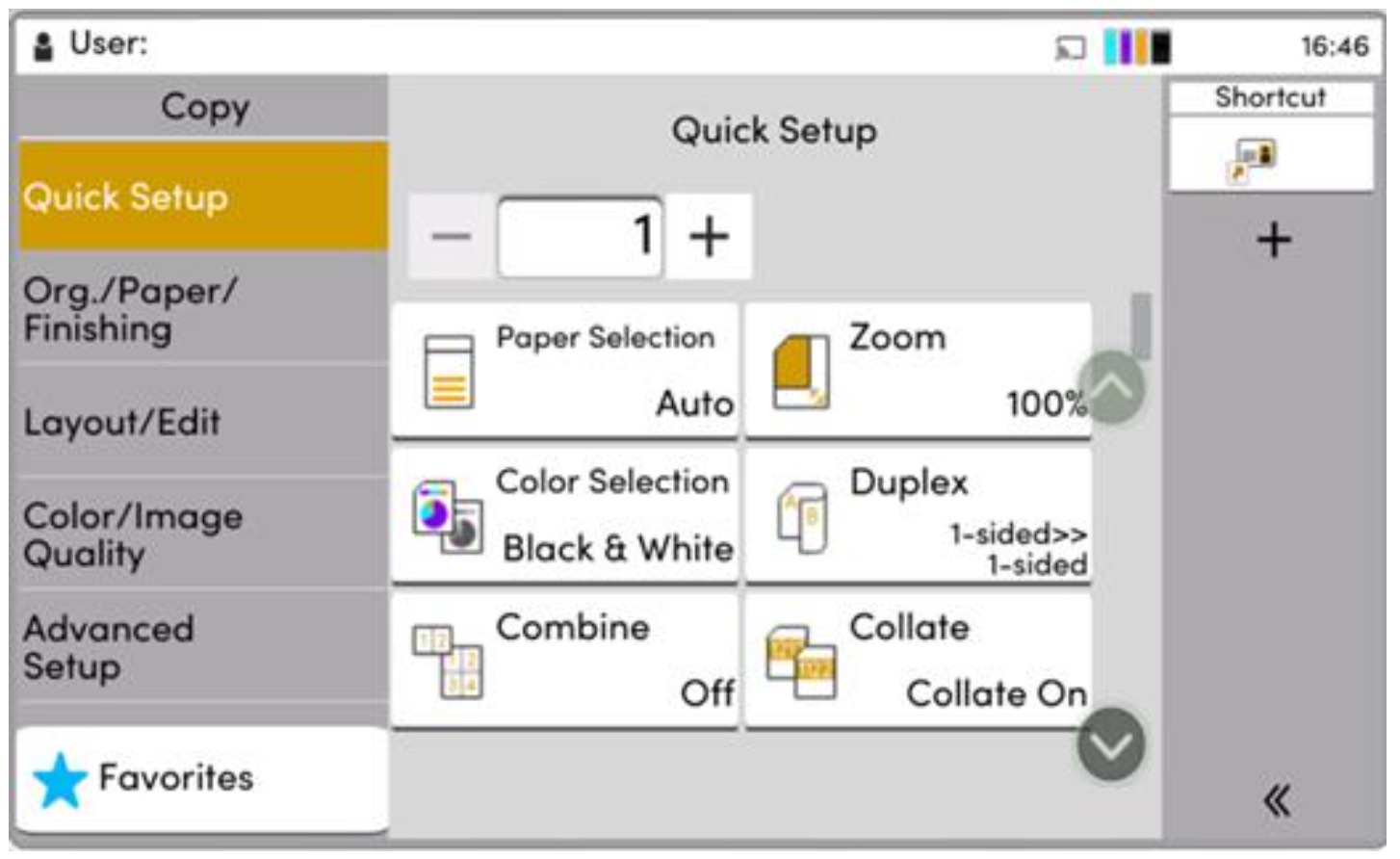
2. On the device functions page, select how many copies you’d like, whether it should be a black and white copy or color, and if it should be 1 sided or two sided. Then hit the physical green start button.
3. Once you’ve made your copies, you can wait for the copier to time out to sign you out, or you can hit the physical home button on the copier, then the logout button in the top right corner