How to download the PaperCut app from Software Center or UMSL Self Service

1. On your UMSL Computer, open Software Center on Windows from the programs or UMSL Self

Service on Mac from Applications

Software Center on Windows from the programs or UMSL Self  Service on Mac from Applications


2. In Windows On the left, select applications, then select the Papercut Print Deploy Client, and click

install.
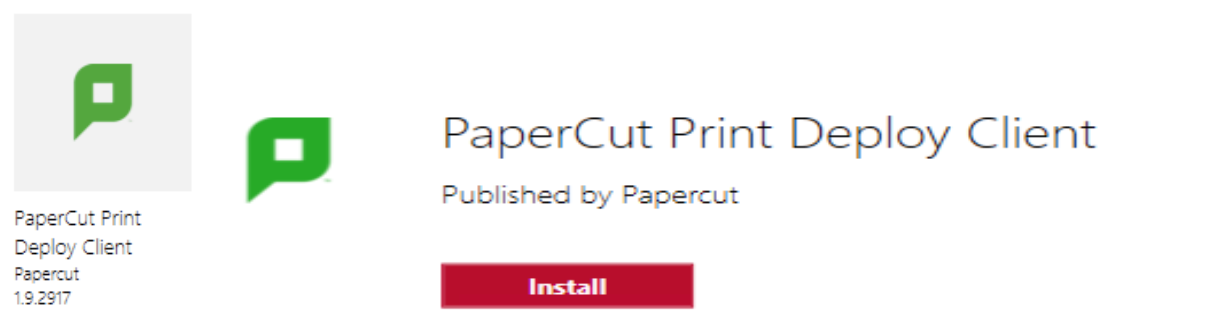
Logo and information for the PaperCut Print Deploy Client, published by PaperCut, with an "Install" button.

In Mac the featured section that opens, scroll down until you see PaperCut and click install
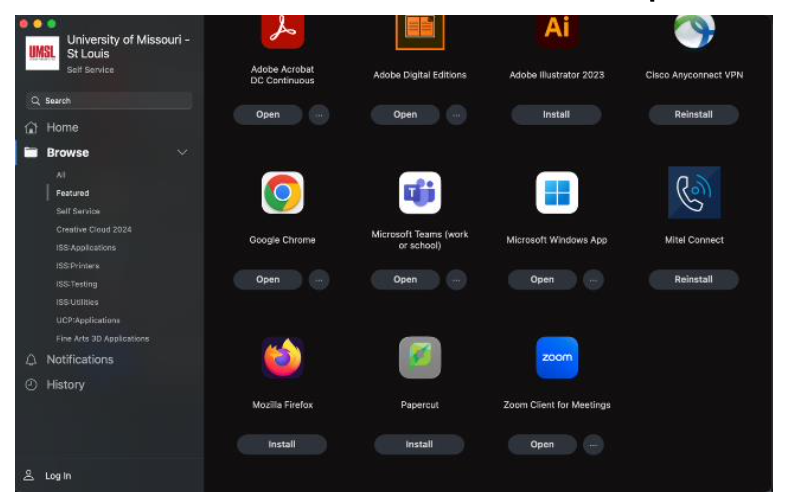
Screenshot of the University of Missouri - St. Louis self-service application interface displaying available software options and installation buttons.

3. This will install the PaperCut App on your computer, allowing you to print to any UMSL printer