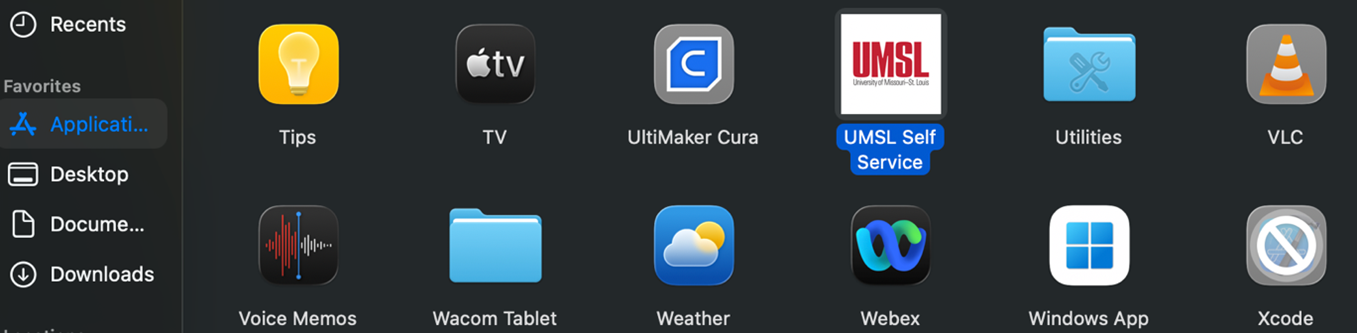
- On your UMSL-issued Mac, open UMSL Self Service from Applications
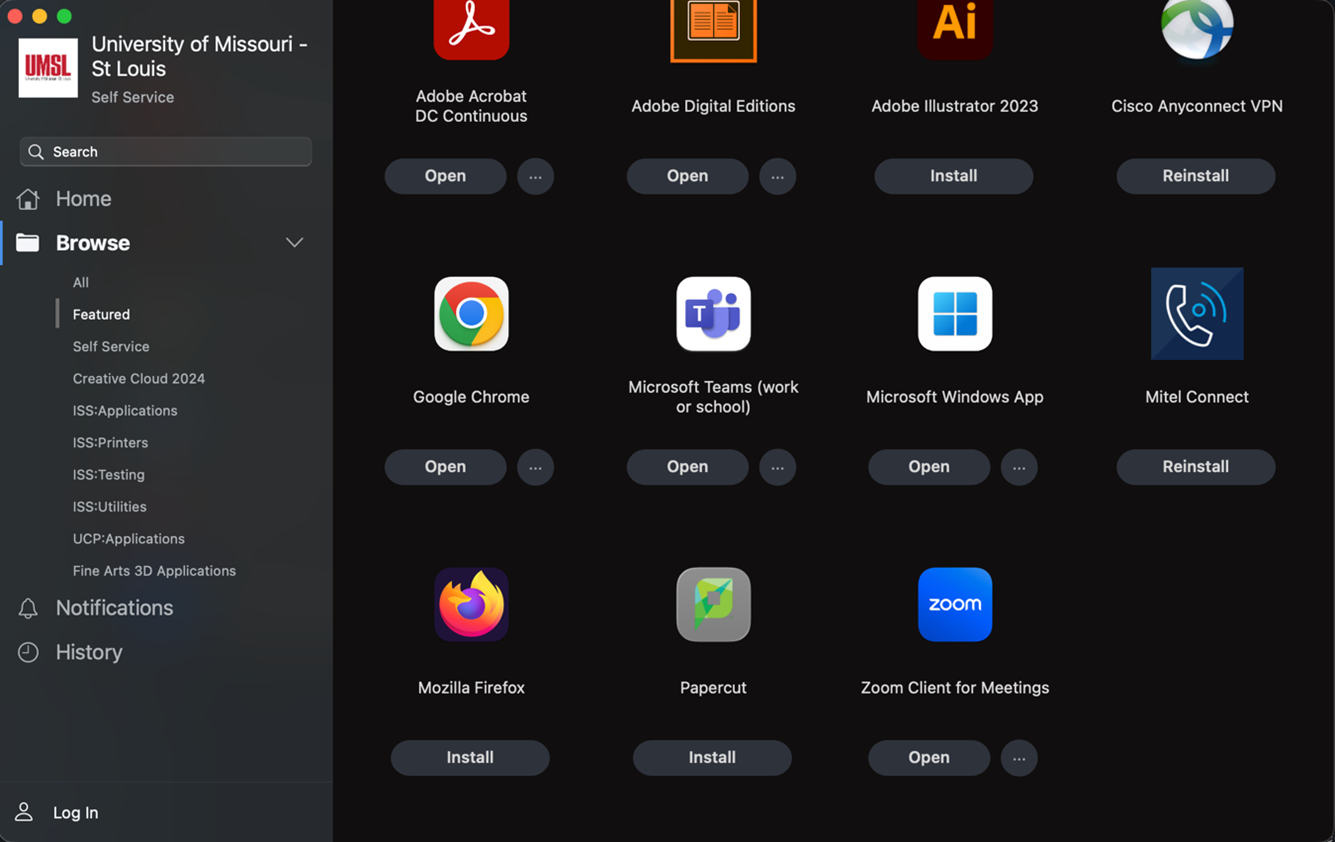
2.In the featured section that opens, scroll down until you see PaperCut, and click Install.
3. When the circle stops spinning and you see a green printer icon in your menu bar, PaperCut has been successfully installed.
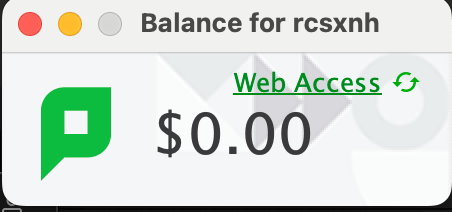
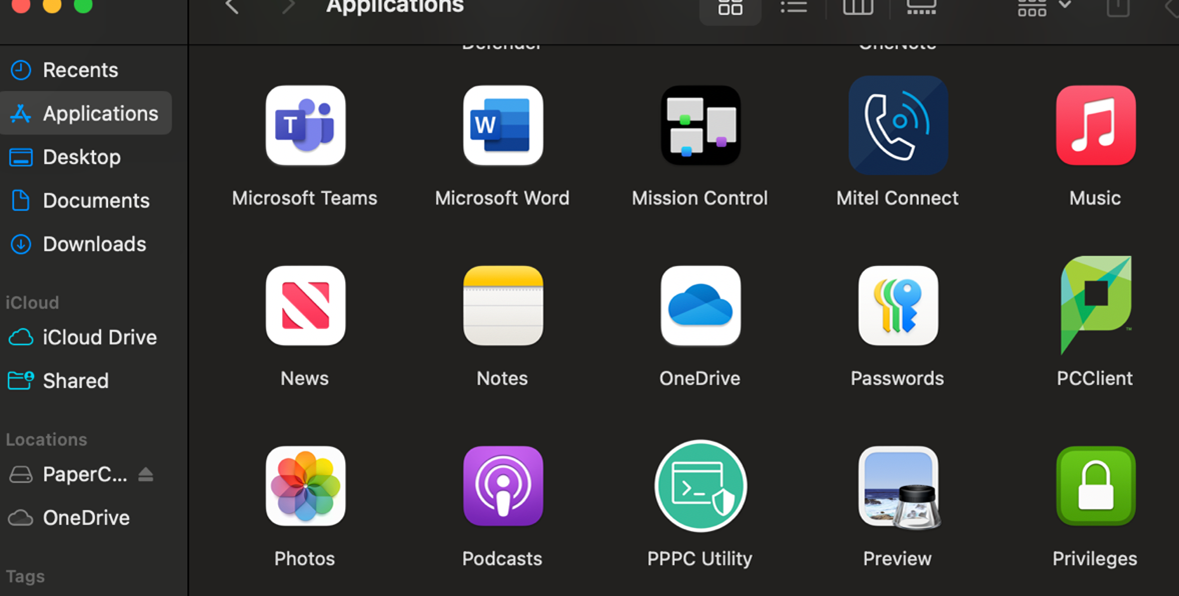
4. In order to charge to the correct account, open the PCClient application in your Applications folder.
5. If you see a widget with your SSO and a $0.00 balance, PCClient is running correctly.
Should you not see it, contact the Technology Support Center for assistance.