The quickest and easiest way to install Mitel on your UMSL UCP Mac is to use the UMSL Self Service application.
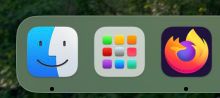
Launchpad (center)
To open Self Service, go to your Applications folder, or open Launchpad.
The Self Service app should open to the Featured section. Mitel will be found there.

UMSL Self Service app
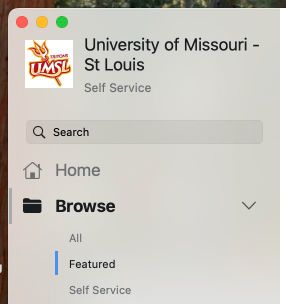
The Featured section on the Self Service sidebar
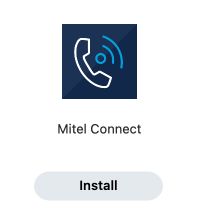
Find the Mitel Application and click on Install.
NOTE: If you are not on the UMSL ethernet or the TritonSecure wireless network, you will need to install the Cisco AnyConnect VPN client, which can also be found in the Featured section of Self Service.
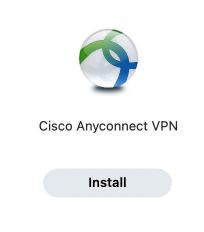
Once the VPN is installed, use the address tritonvpn.umsl.edu to connect to the VPN. It will take you to the UM System login page. Use your sso-id@umsystem.edu email address and
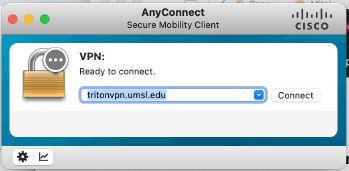
password to log in.
The first time you run Mitel Connect on your computer, you will need to configure your login.
When you first launch the newly installed Mitel Connect you are greeted with a login screen:
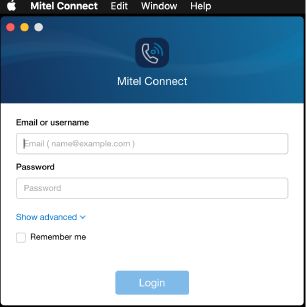
Email or username
�mail ( name@example.com) Password
Password
'-
Show advanced v
Remember me
Login
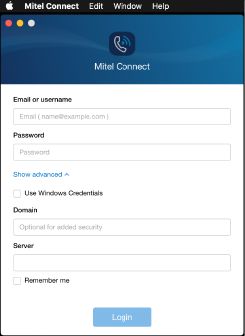
Click on the text Show advanced to reveal the full window:
Username: enter your campus SSO (NOT your email) Password: enter your SSO password
Do not check the Use Windows Credentials box. Domain: enter UM-AD
Server: 134.124.136.128
Be certain to check Remember me so the settings are saved.