Microsoft will stop providing security updates, technical support, and security fixes for Windows 10. Windows 10 machines need to be upgraded to Windows 11 to eliminate a security risk to your data and ensure that your machine is secure.
If you need to free up disk space to prepare for the upgrade, click on the drop-down below [Recommendations to free up disk space] for recommendations. If you still need assistance, please submit a ticket to the Technology Support Center (TSC) at help.umsl.edu.
Once you have enough disk space [at least 30GB], you can go ahead and proceed to the steps to [Instructions for Installing the Windows 11 Update via Software Center].
- Open File Explorer (by clicking the folder icon on your taskbar).
- Select this PC from the left pane to see a list of your drives and their available space.
- Alternatively, you can go to Start > Settings > System > Storage to get a more detailed breakdown of your storage usage and free space.
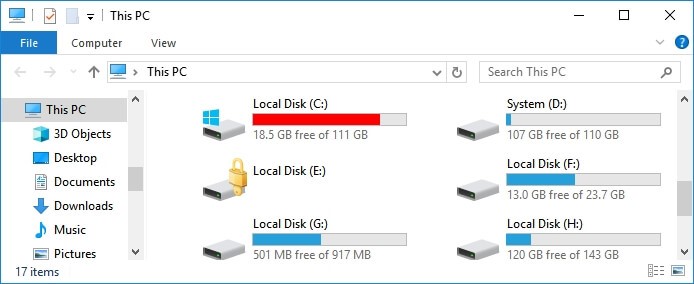
Here are three steps to free up space on your machine.
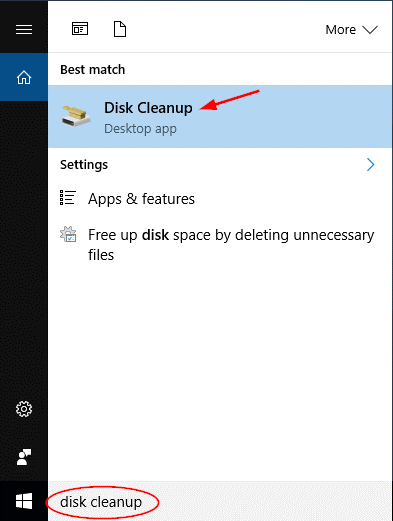
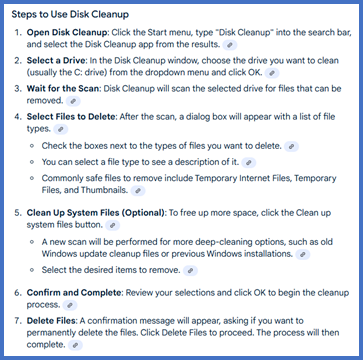
(1) DISK CLEANUP
Click the Start Menu
Type Disk Cleanup
Run the Disk Cleanup program.
Free up drive space in Windows
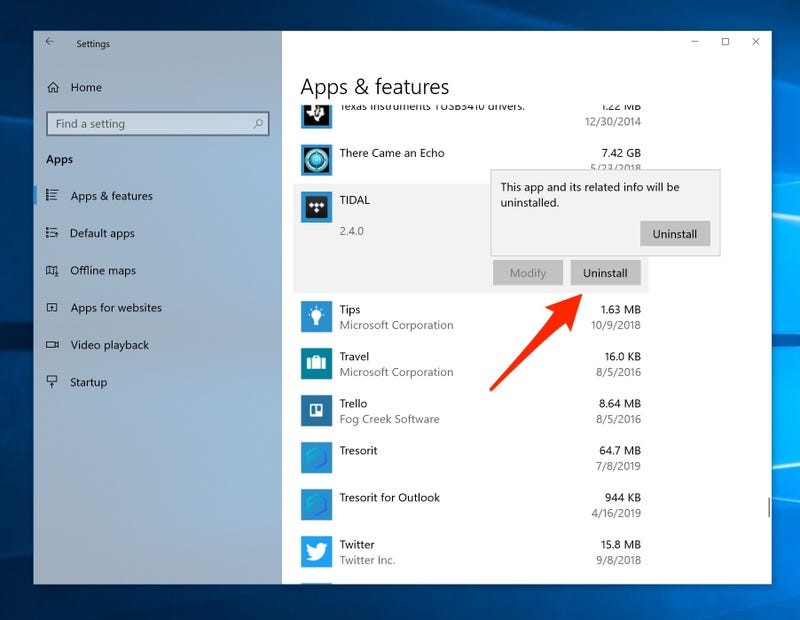
(2) UNINSTALL UN-NEEDED PROGRAMS
Click the Start Menu
Type Settings
Select Apps & features
Select to Uninstall any applications that you previously installed and no longer need.
(3) CLEANUP DOWNLOADS FOLDER
Open your Downloads folder in File Explorer and delete any files you no longer need.
If you need assistance with freeing up disk space, please submit a ticket to the Technology Support Center at help.umsl.edu
Once you have the space required to upgrade your machine, please follow the steps below to proceed.
Instructions for Installing the Windows 11 Update via Software Center
Please read this carefully and set aside enough time to complete the process — it may take up to two hours to download the software. Your productivity will not be interrupted. You do not need to close any applications while the software is downloading. When prompted to restart your computer, allow up to 60 minutes of not being able to use your computer. Following these steps in order will ensure everything installs correctly.
✅ Before You Begin:
- Make sure your computer is plugged in during the entire process.
- Do not turn off or force-restart your computer while updates are installing.
- If anything is unclear or you run into issues, please submit a ticket to the Technology Support Center at help.umsl.edu.
🟢 Step 1: Open Software Center
- Click the Start Menu (bottom-left corner of your screen).
- Type "Software Center" into the search box.
- Click on Software Center when it appears.
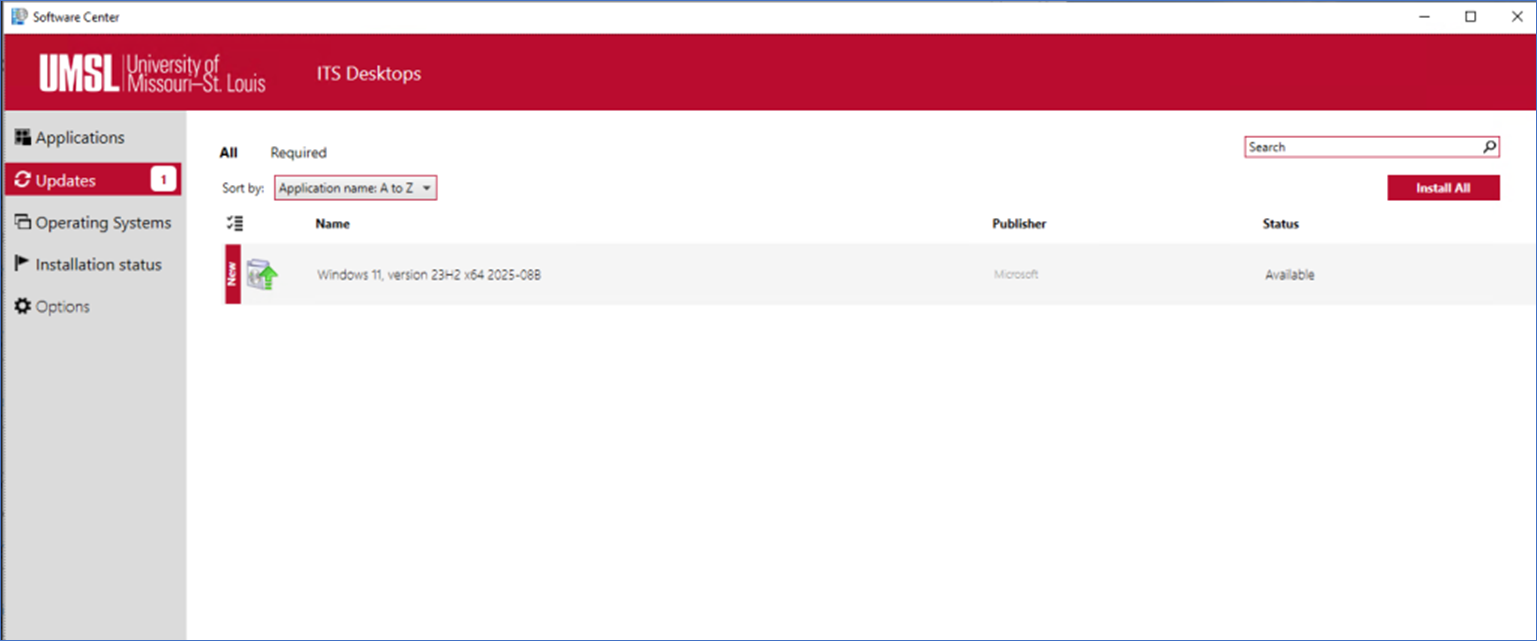
🟢 Step 2: Check for Updates
- In Software Center, click the "Updates" tab on the left-hand side.
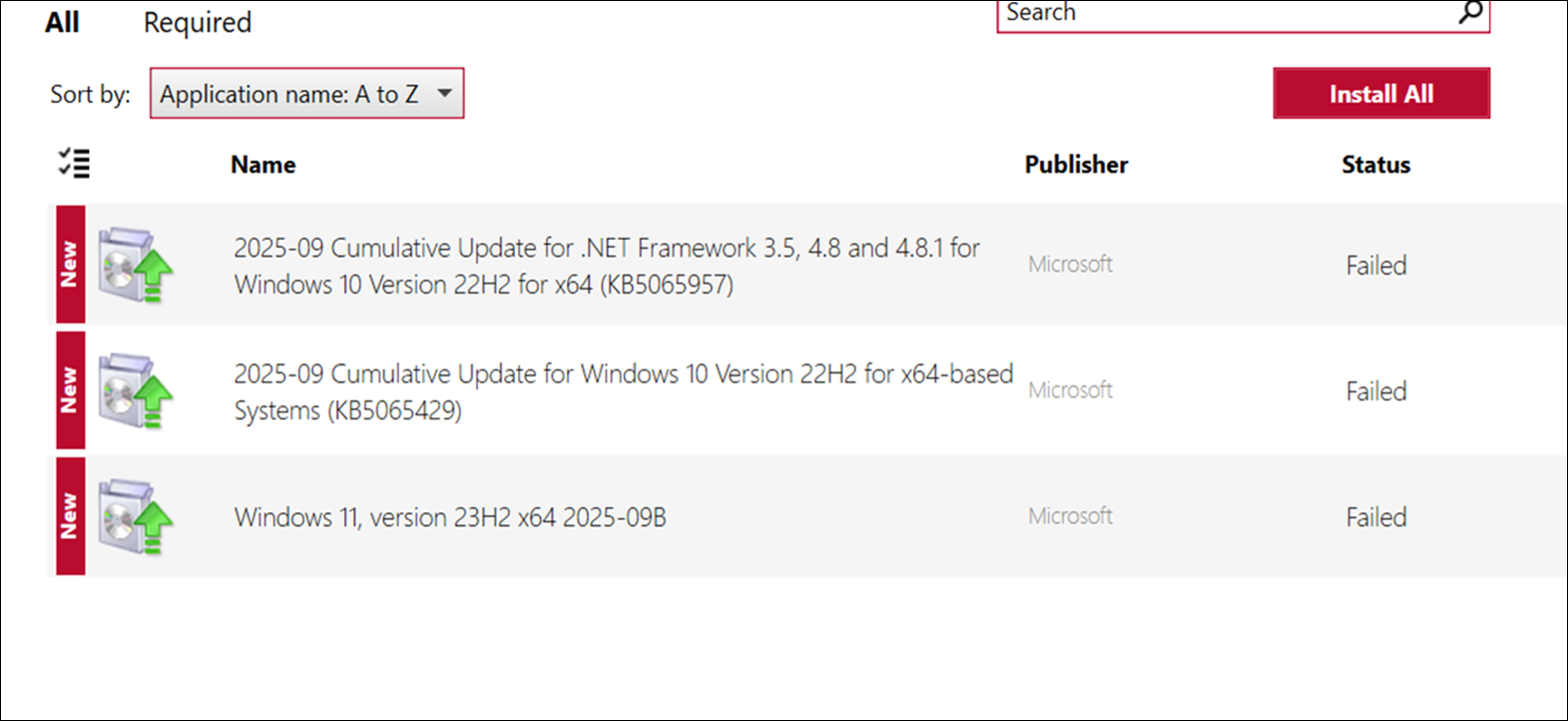
- Look for the any “Cumulative” update(s):
- Click on this update(s), then click "Install".
- Note: If the update status shows “Failed”, click on “Retry/Install”.
- Wait for the update to finish.
🟢 Step 3: Restart Your Computer
- After the Cumulative update(s) finishes, you will be prompted to restart your computer.
- Click the Restart button if you see one. If not:
- Click the Start Menu, select Power, then choose Restart.
- Allow your computer to fully restart before proceeding.
🟢 Step 4: Install the Windows 11 Update (if available)
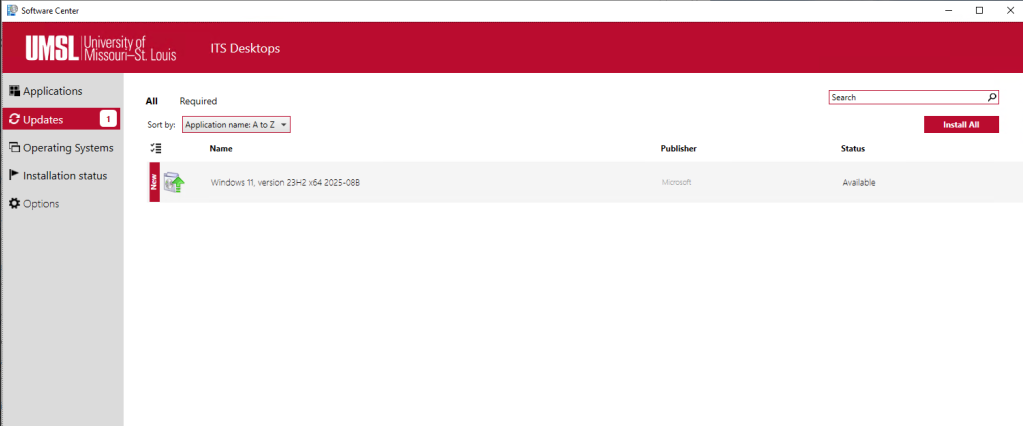
- After the second restart, open Software Center once more.
- Go to the "Updates" tab.
- Look for the update titled something like:
"Windows 11, Version 23H2 x64 2025-09B" - Click on the update, then click "Install".
- Follow any on-screen instructions.
- When installation is complete, your computer will restart and you should see a new login screen. Use your UMSL credentials to log in.
💡 Final Reminders:
- Your computer may take longer than usual to restart during this process — this is normal.
- Do not power off the computer while it’s restarting or updating.
- Keep your device plugged in throughout the update.
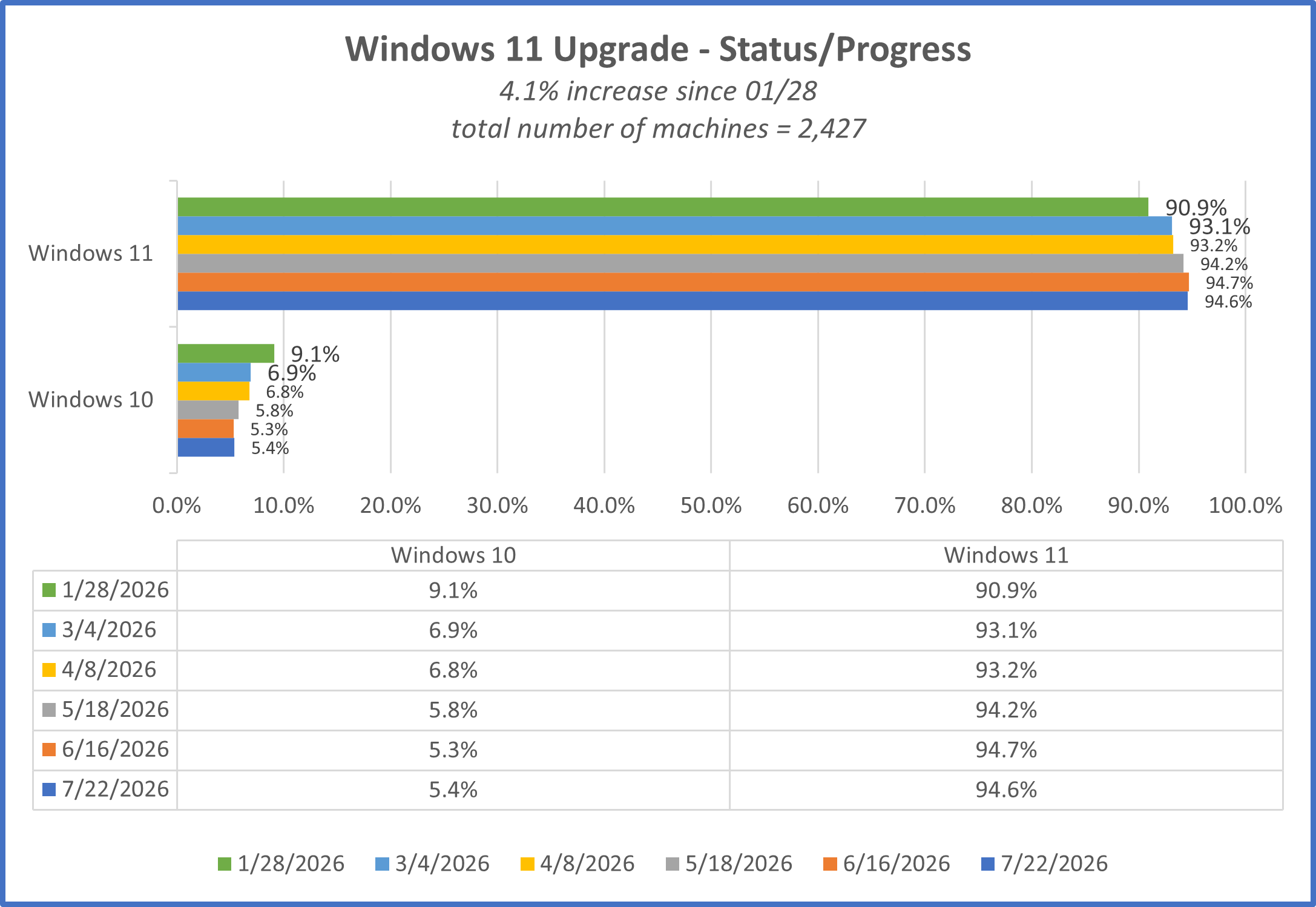
This graph illustrates the upgrade from Windows 10 to Windows 11 from January 28th to July 22, 2026
If you have any questions or encounter any issues, please submit a ticket to the Technology Support Center at help.umsl.edu.