These instructions will install and connect the device to tritonvpn.umsl.edu (The instructions were tested for Safari and Firefox and do not work on Chrome)
-
The VPN client can only be installed from TritonNet (campus wireless network) or an off-campus system.
-
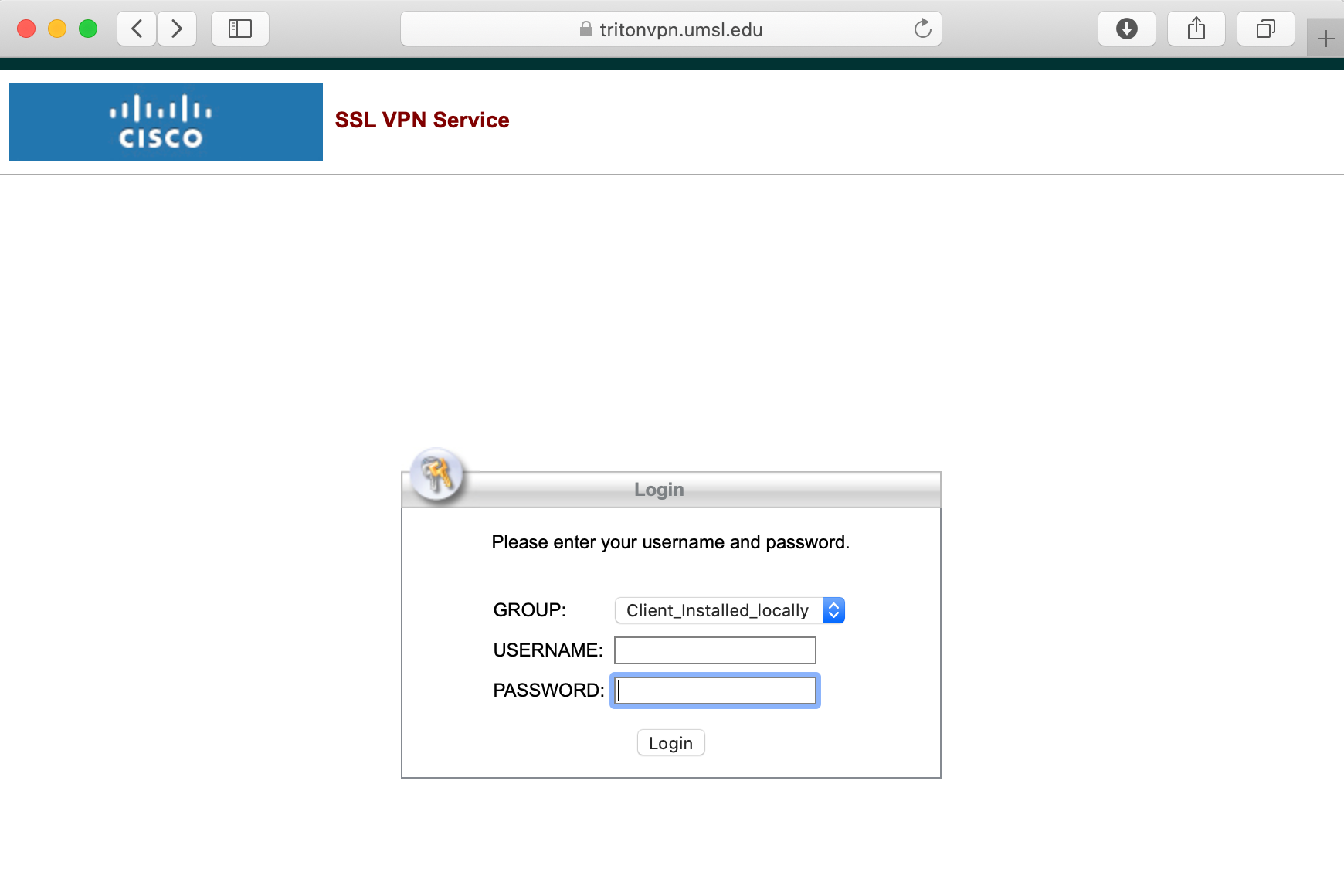
Open an Internet Browser and go to https://tritonvpn.umsl.edu and login with your UMSL sso id and password. If you are in a public computer, choose Dissolvable_Client and it will uninstall after you logout of the computer, otherwise choose Client_Installed_Locally.
-
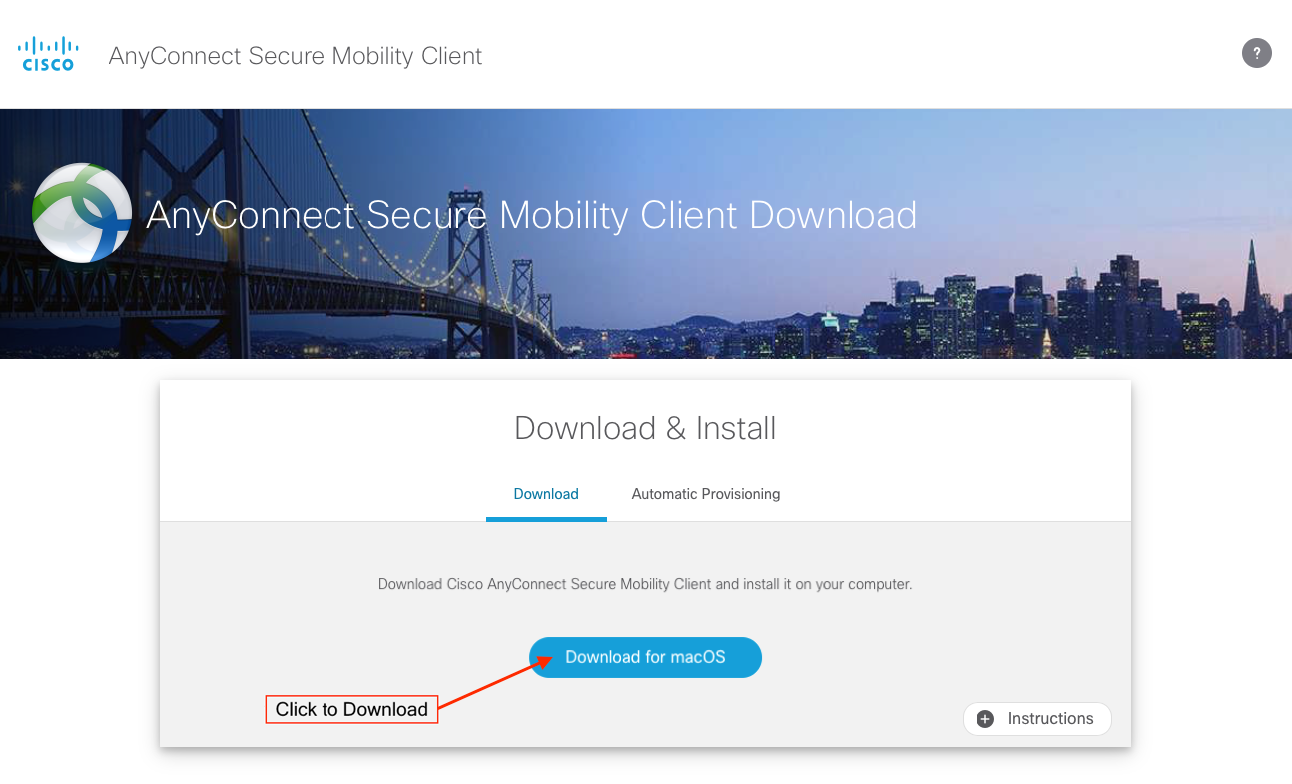
Select “Download for macOS”
-
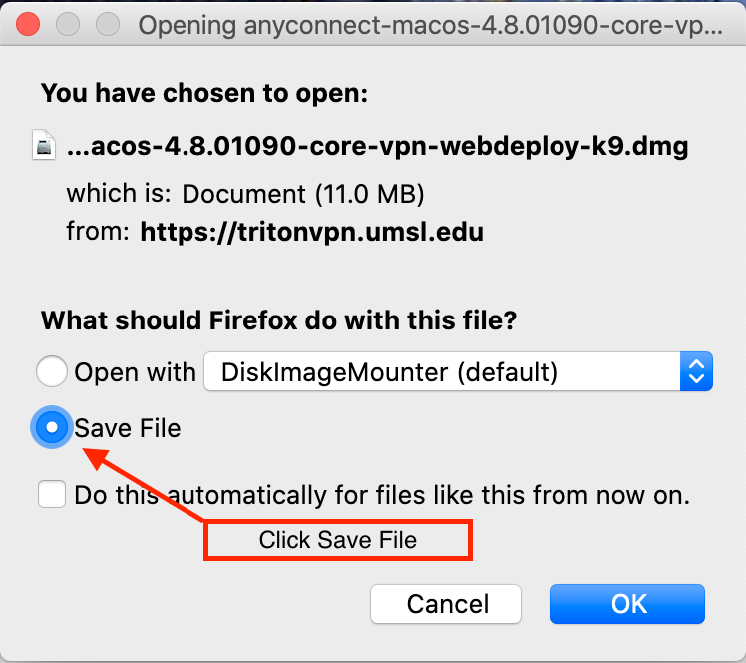
Launch DiskImageMounter
-
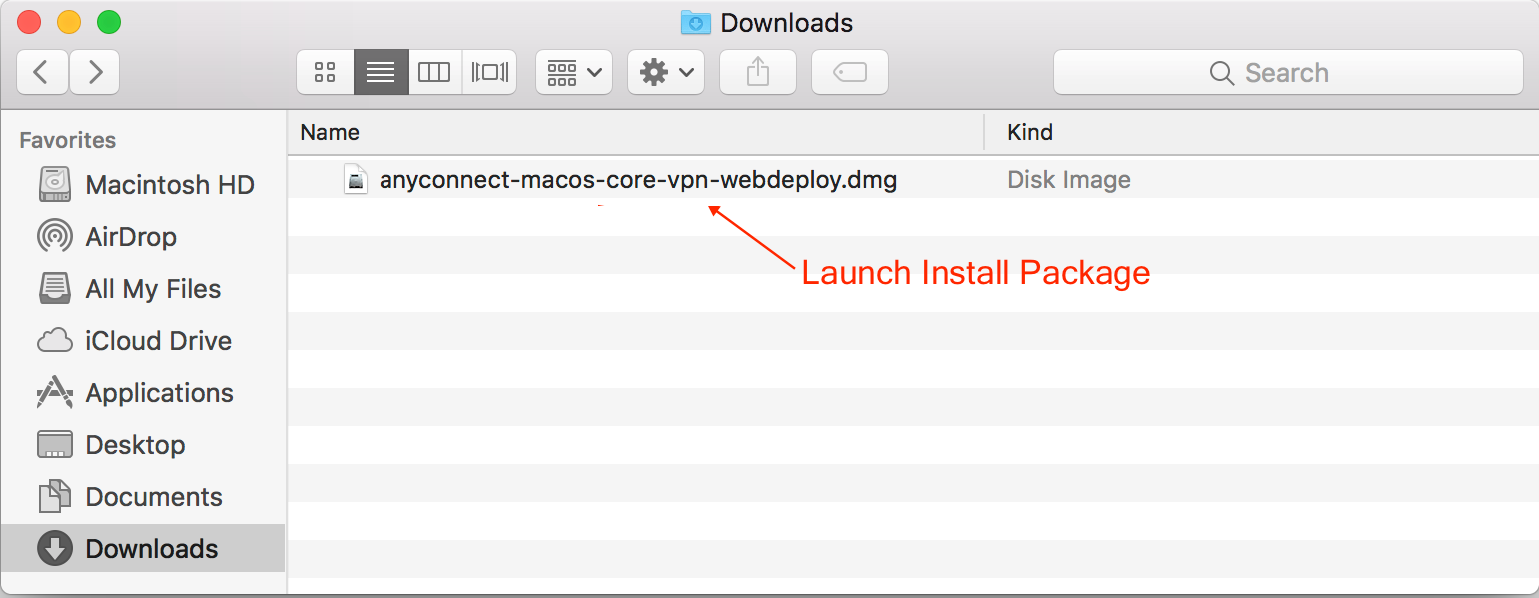
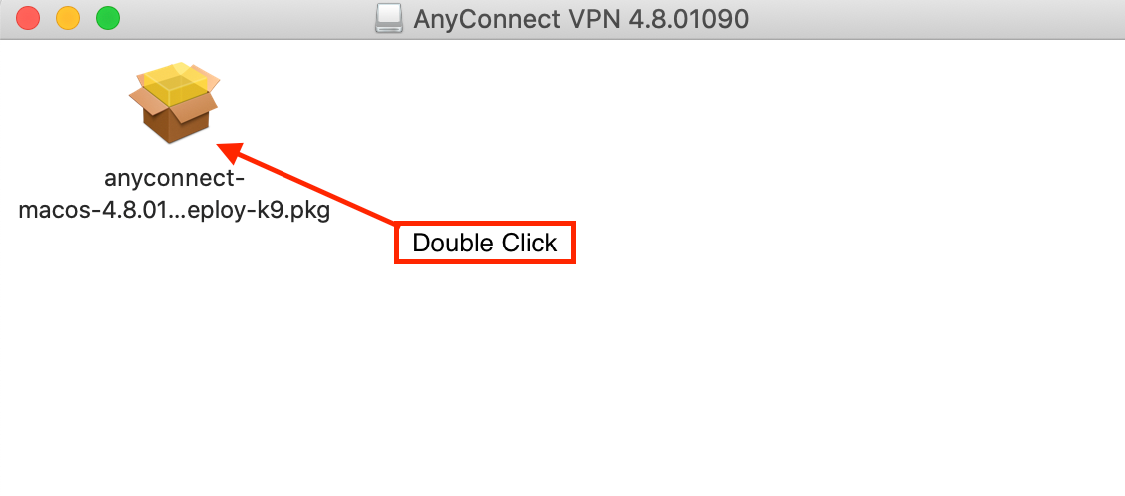
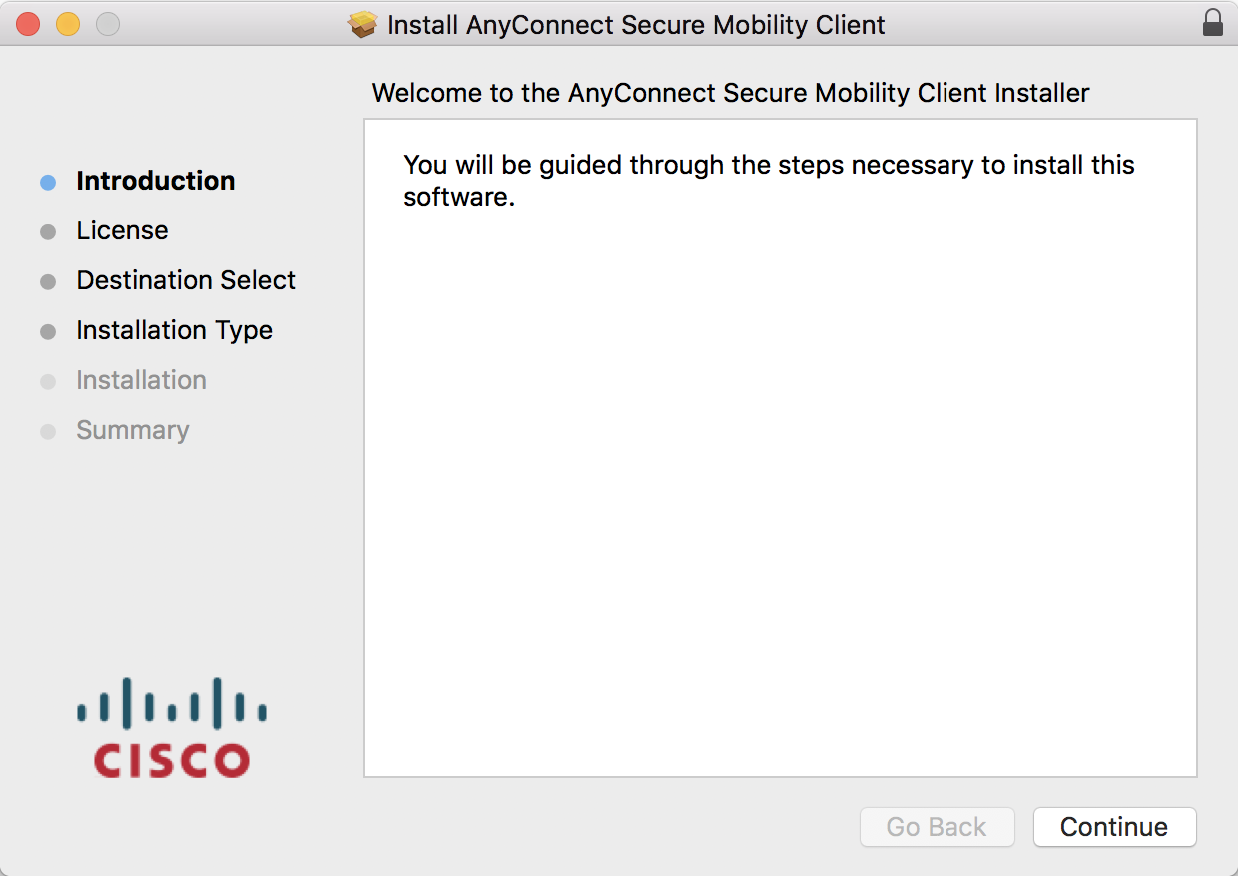
Launch Install Package

-
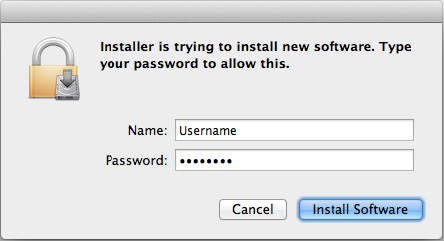
You must have elevated privileges to install Anyconnect. Enter your computer’s password, then click “Install Software”

-
Launch the AnyConnect client from the “Cisco” folder located in the Applications folder.

-
Enter tritonvpn.umsl.edu and click connect

-
When the connection is finished, the client will add an icon the menu bar (upper right).