Configuring the Remote Desktop Client on Apple IOS (iPad or iPhone)
-
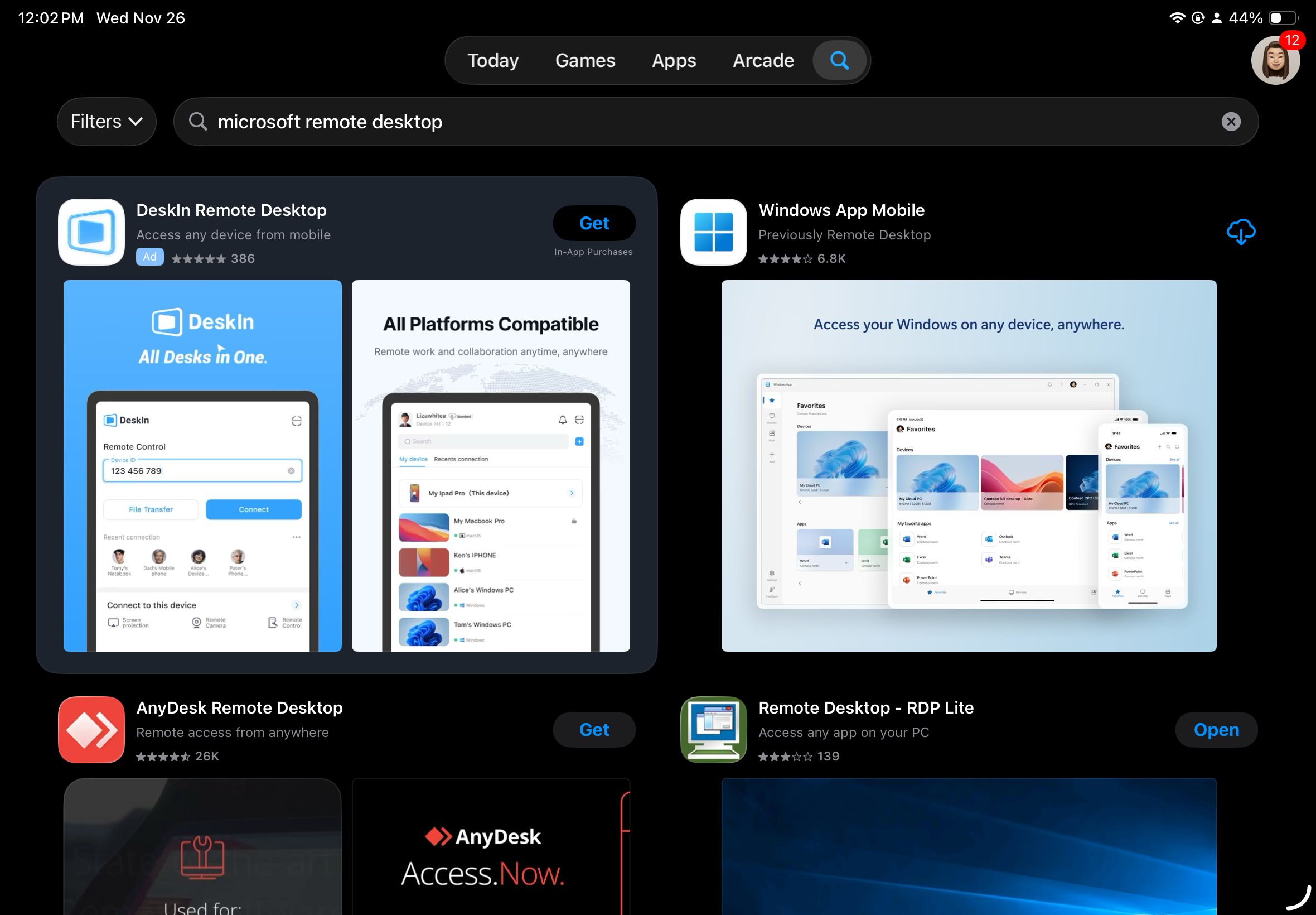
Download “Windows App Mobile” from the App Store
-
Launch Windows App Mobile.
-
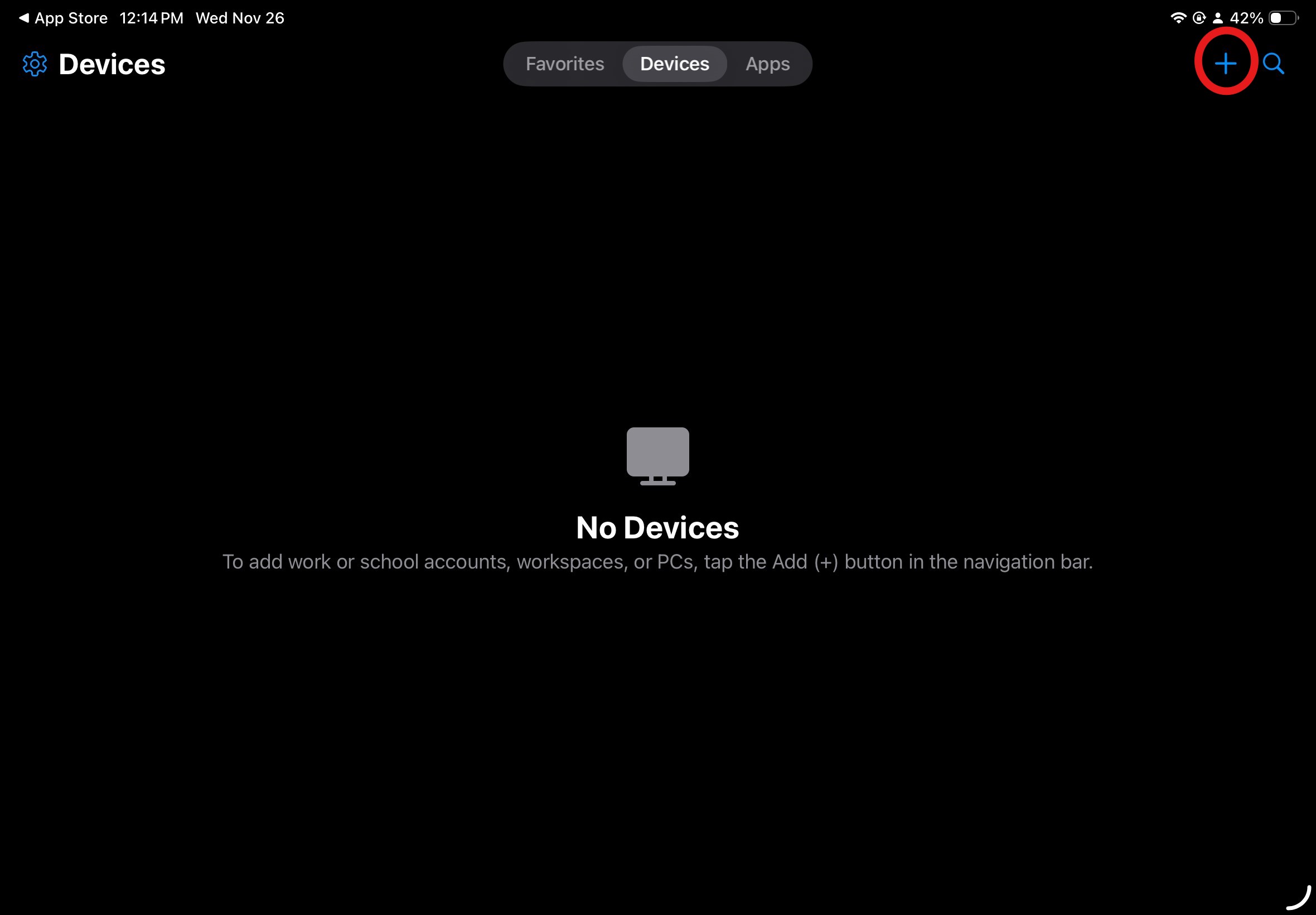
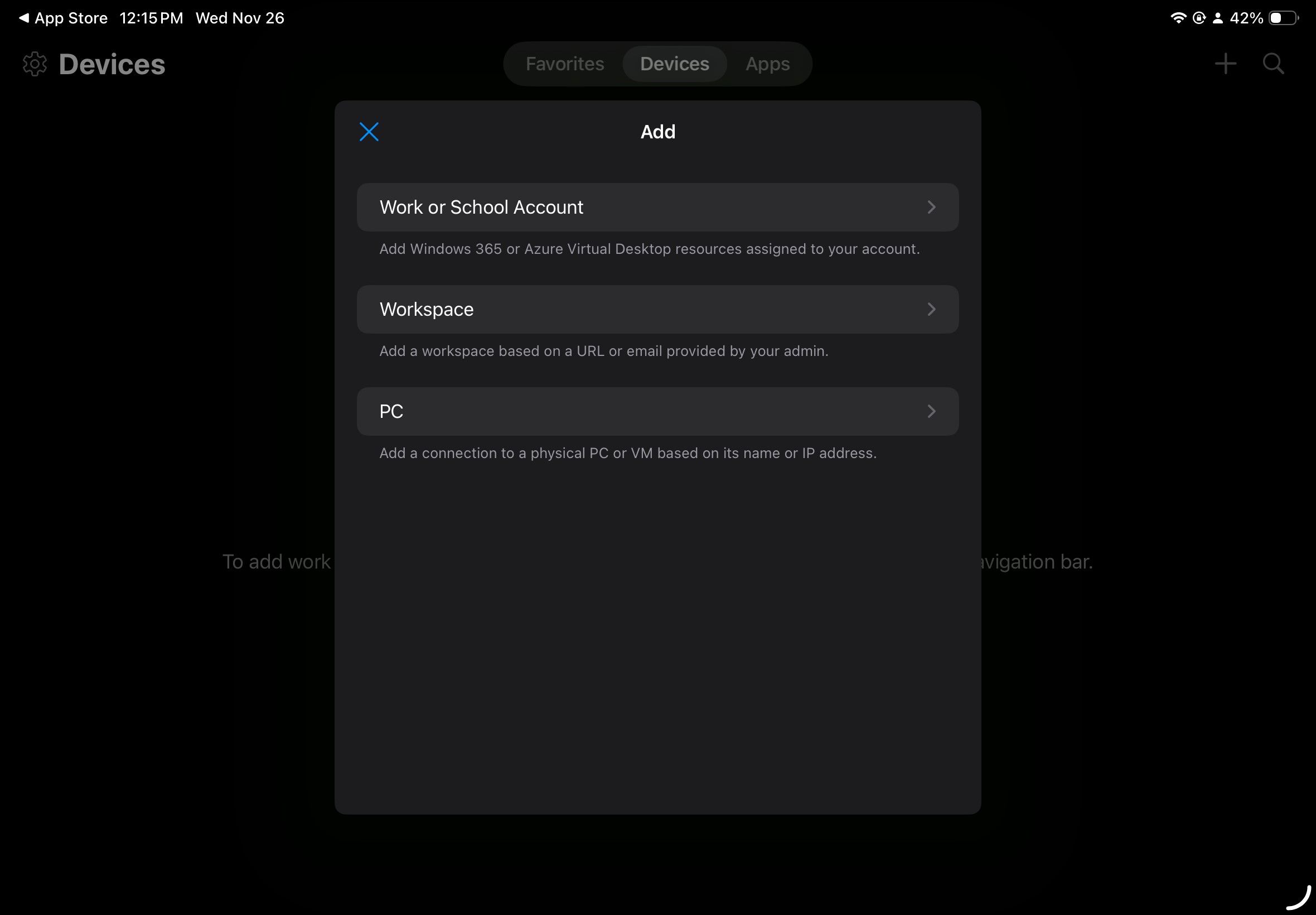
Click on the + on the top right of the screen to add a profile and select the "PC" option.
-
Remember to type the fully qualified name for the computer such as computername.stl.umsl.edu. Click Done. Under User account add your sso id in either format: ssoid@stl.umsl.edu or umsl-users\ssoid and type your password.
-
Click on “Additional Options” and remove any Gateway information.
-
At the end, there will be a screen to accept the Client Authentication certificate. Click Accept.