Steps to Digital Accessibility
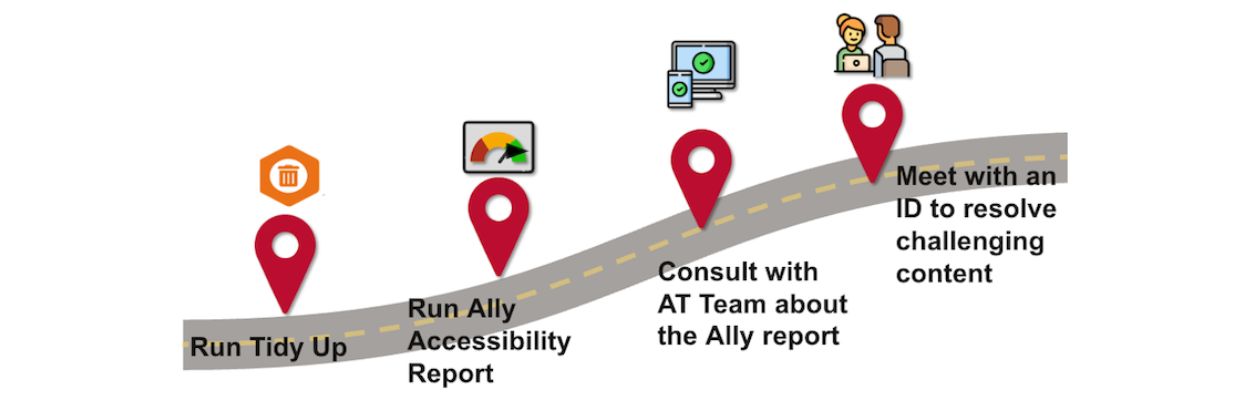
Step 1:
Run TidyUP to clean up unused content in your Canvas course. Learn more about TidyUP
Step 2:
Run an Ally Accessibility Report in your Canvas course to identify remaining digital accessibility issues. Learn more about Ally
Step 3:
If needed, consult with a UM Academic Technologist about your Ally report. Get in touch with UM AT
Step 4:
Meet with an UMSL CTL Instructional Designer to resolve any challenging content. Get in touch with the CTL
Digital Accessibility Resources by Content Type
Any content displayed in Canvas should be made accessible.
Additional resources:
- Run TidyUP to clean up unused course content
- Run Ally to scan your course(s) for accessibility issues
- Use headings to organize content
- Add alternative text to images
- Creating accessible videos
- Use descriptive links
- Format lists as proper bullet or numbered lists
- Check the accessibility of any uploaded PDFs
- Ensure that any equations are accessible
Many instructors create their materials in Microsoft products like Word, PDF, PowerPoint, etc. Remediating documents in their native program before uploading them to Canvas can help improve course accessibility.
Additional resources:
TidyUP is a utility designed to help users organize and clean up their files by identifying duplicates, unused items, and other clutter to free up storage and improve organization. Clean up unused content in your Canvas course to save time identifying files that must be addressed for potential accessibility barriers.
Additional resources:
For assistance: Contact UM Academic Technology
Ally is available in Canvas to help faculty identify digital accessibility barriers and provide alternative format downloads for students and instructors. Ally automatically scans course content and provides accessibility scores ranging from “low” to “perfect,” along with step-by-step guidance for improvements. The tool generates course accessibility reports showing overall scores, content distribution, and prioritized issues to address. Key features include:
Additional Resources:
For assistance: Contact UM Academic Technology
UMSL faculty can obtain Adobe Acrobat licenses through UMSL Information Technology Services to support PDF accessibility remediation efforts.
UMSL Adobe License Information
Additional Resources:
For assistance with obtaining an Adobe Acrobat Pro license: Contact the UMSL Technology Support Center
For assistance with learning to use Adobe Acrobat Pro: Contact UM Academic Technology
Mathpix is a tool that converts images or screenshots of math, equations, and handwritten notes into editable digital text using optical character recognition (OCR). If you have Math or STEM-related content in equations or images, contact Keeta Holmes (keeta.holmes@umsl.edu) to join UMSL's pilot for Mathpix, a software package that helps you convert that content to accessible formats.
Additional Resources: