Important: In the case of an emergency, do not use softphone to call 911 while working remotely. The call will go to UMSL PD and not the police closest to your physical location.
Before you begin
Install Mitel Connect client using the Mac OS install instructions.
You will need to install Mitel Connect on your home machine or laptop to use softphone.
In order to use the Softphone in Mitel Connect, you must have a working microphone attached to your computer. Most laptops and Macs will have a built-in microphone, but most PC desktops will require an external mic to be installed. You can check for the presence of a microphone by clicking the Apple icon in the upper left corner of your screen, opening System Preferences, clicking Sound, and then clicking the Input tab in the Sound window. There should be a device listed and selected. Your microphone may have a different name than the one in the example. The built-in internal microphone will work with Connect.
Enabling Softphone
Open Mitel Connect and click your name where it appears near the top of the window.
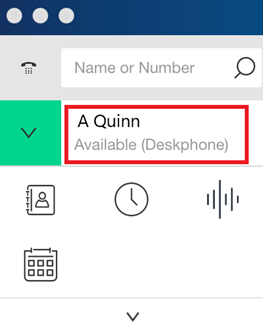
Click 
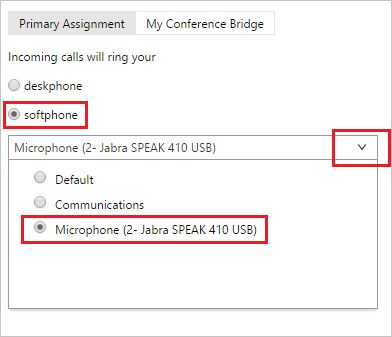
Click the Softphone tab and then select your microphone from the dropdown list.
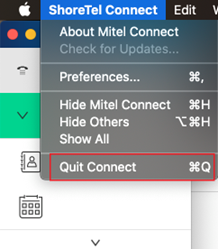
If your Connect client has trouble switching over to Softphone when you select it, check “On startup assign me to my softphone” and then exit and reopen Mitel Connect. Be sure to end the program by clicking Shoretel Connect in the very top-left of the screen and clicking Quit Connect, or by using the command-Q keyboard shortcut.
Close the Settings window using the red circle in the top left corner, and then select Softphone. Make sure your microphone is selected in the dropdown list. Your microphone may have a different name than the one in the example. You can skip this step if you selected “On startup assign me to my softphone” in the Settings window.
Using Softphone
To make a call on campus, type a name, phone number, or extension in the search bar at the top of the window, or use the telephone icon to click numbers on a key pad. For external calls, you can search for the person by name if you have them saved as an Outlook contact. Otherwise, you will need to type the full phone number or enter the full phone number using the keypad. It is not necessary to dial 9 first when using the Softphone, but you will need to enter the area code.
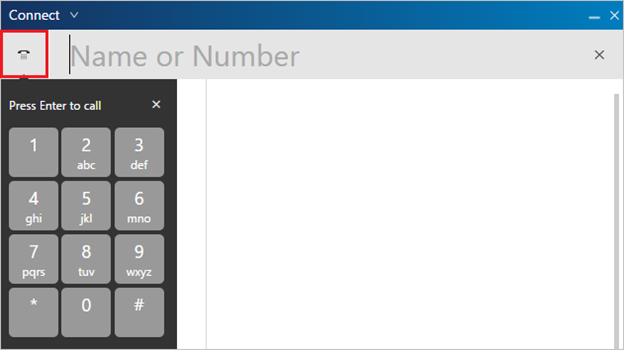
Press Enter on your keyboard to connect the call.
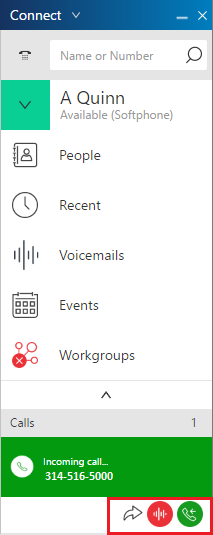
To answer an incoming call, use the green button at the bottom of the Mitel Connect window, or the Accept button on the popup that appears in the lower-right corner of your computer screen.

Using Mitel Softphone from home
Mitel Connect Softphone can be set up as above and run on home machines, but in order for the program to get a working connection you will need to use Cisco VPN to connect to the campus network.
Visit the TritonVPN page for instructions on installing and using Cisco AnyConnect VPN Client on an Apple Computer.
Follow the link to Install Mitel Connect on a home machine, on Telephone Service’s Instructions and Guides page.
To Exit Softphone
If you checked “On startup assign me to my softphone” in Mitel Connect Settings, uncheck that box, close the settings window using the X in the top right corner, then fully exit Mitel Connect by clicking the word Connect in the top-right of the window and clicking Exit.
Otherwise, fully exit Mitel Connect by clicking the word Connect in the top-right of the window and clicking Exit.
Troubleshooting
I can’t hear the person I’m calling
- Try adjusting your computer’s volume and make sure it is not muted.
- Be sure you are running Mitel Connect on your local machine (the one you are sitting at and physically touching) not on a machine you are remoted into (which is on campus).
- Reboot your computer and try again.
The person I’m calling can’t hear me
- Check your microphone settings in Mitel Connect to ensure the correct one is selected.
- Test your microphone in Sound settings. Go to Sound section of System Preferences (as shown in Preparing for Softphone section of this document), and speak into the microphone. You will see the bars next to “Input level” change color indicating it hears you.
- Be sure you are running Mitel Connect on your local machine (the one you are sitting at and physically touching) not on a machine you are remoted into (which is on campus).
- Reboot your computer and try again.
Mitel Connect issues
Please refer to the Mitel Connect install documentation and ensure it is configured correctly:
Ensure that you are connected to UMSL’s VPN.
If your Connect client has trouble switching over to Softphone when you select it, go into Softphone in Options as described above, check “On startup assign me to my softphone” and then Quit and reopen Mitel Connect.