Music and the performing arts face several unique digital accessibility challenges, particularly because their content often relies on sensory experiences, specialized notation systems, and performance elements that don’t easily translate to text-based or visual alternatives. Despite potential challenges, it is important to ensure all of UMSL's courses meet the federal standards of Accessibility Compliance.
This page endeavors to offer best practices and strategies to use various assistive technologies to support music and performing art curriculum in making their materials digitally accessible and compliant.
Key Strategies to Music Accessibility
- Provide alternative options for meaningful interpretation of important elements in sheet music that are not solely reliant on vision.
- Provide alternative options for meaningul interpretation of important elements in musical audio recordings not solely reliant upon hearing.
- Provide alternative options for students to engage and contribute to course activities that make allowances for the above considerations.
Ultimately, one of the best strategies for accessibility in your music course is to explore alternatives so that they are there and prepared to accomodate a students' needs.
Relating Score and Sound for Accessibility
The relationship between the visual (score) and the audio (recording) of a piece of music is the most readily available resource that can be used when making music lessons accessible for students.
When offering alternative assignment options, consider substituting visual elements with audio, or vice versa, based on the student’s needs while still following accessibility guidelines.
For example, in theory or analysis lessons, engaging with a score might replace a listening-based task, and listening to a recording could substitute for certain aspects of visual score analysis, allowing students to demonstrate understanding through their preferred mode of interaction.
In some cases, a visual score can substitute for a recording when analyzing elements like:
-
Form and structure
-
Counterpoint and melodic interplay
-
Instrumentation
Conversely, a recording may substitute for a score when focusing on:
-
Instrumentation
-
Form and structure
-
Harmonies
Key Considerations for Switching Score and Audio
Swapping between score and audio is often a simple and effective accessibility strategy. Recordings and scores are usually easy to obtain, and foundational skills in both listening and score analysis are introduced early in music theory education.
However, this substitution relies on students having some baseline skills. For beginners, alternative approaches may be needed to address skill gaps. Additionally, there may be times when a specific mode of analysis—aural or visual—is essential to the learning outcome. Instructors should use their best judgment to determine when substitution supports the core learning objectives.
Describing Musical Examples with Text and Alt-Text
As discussed in our webpage on Images, meaningful alt-text allows for screen reader users to access and engage with visual information by providing a text description of the image. As the most common display of music notation is the use of scores, alt-text can be used to bridge this gap by utilizing International Standards Notation, Interval notation, and similar text-based notation typically used for theory/analysis.
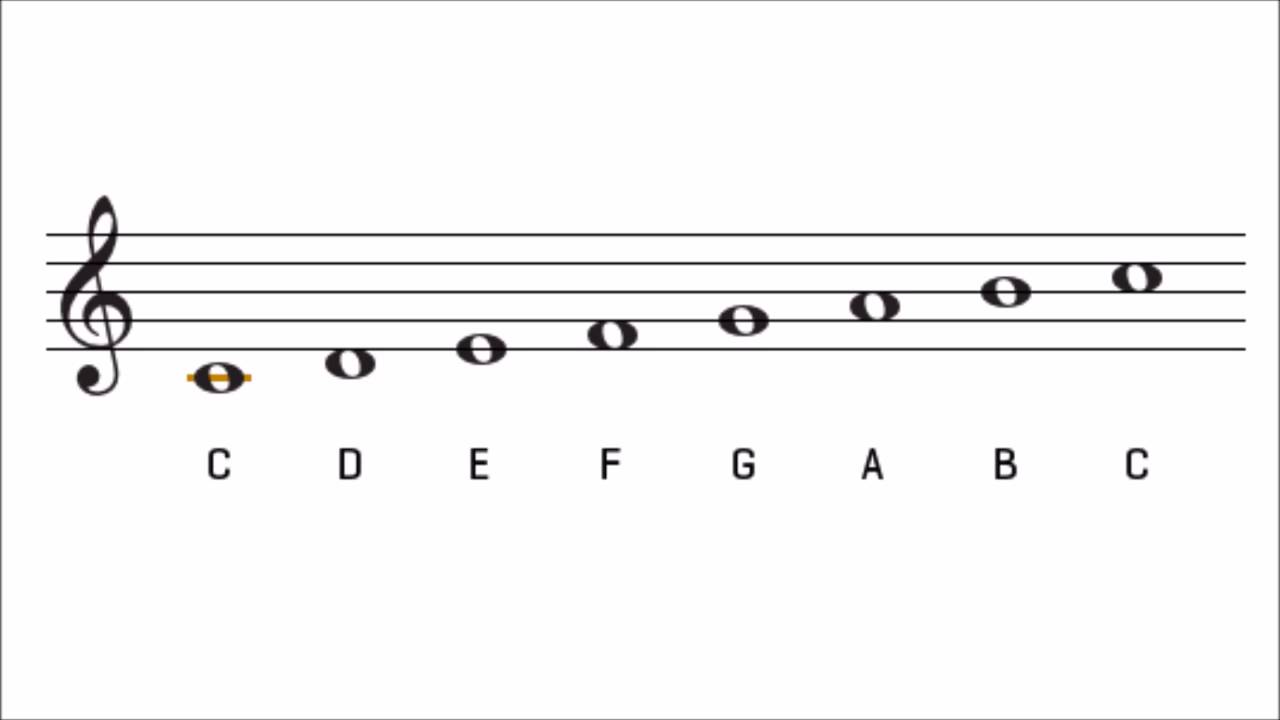
For example, the alt-text for the image below would be: C Major scale with whole notes. Ascending from C4 to C5
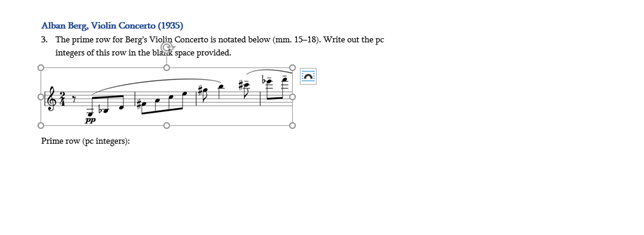
The image below demonstrates a more complex example of using alt-text for a score.
Alt-text for the score itself: Prime row with notes: G3, B-flat 3, D4, F-sharp 4, A4, C5, E5, G-sharp 5, B5, E-flat 6, F6
How to Write Musical Alt-Text for Screen Readers
When writing alt-text, you may have to adjust the text as if it were being read aloud as there are some common translation errors that screen readers have with music. Below are some common examples of translation errors and how to avoid them.
- Special characters like sharps and flats may be read as "number sign" or "b"
- Solution: Note accidentals as if reading them aloud: C-Sharp as opposed to C#, the same applies to Flat and Natural.
- Screen readers often do not distinguish between upper and lower-case characters
- Solution: Write out intervals verbally such as "Major fourth interval" as opposed to M4 because screen readers typically would not distinguish that it was an upper-case M.
- Depending on the settings and the software, screen readers may skip certain special characters and punctuation.
- Solution: Write out the notation or analysis elements verbally, as if read aloud. For example:
- Write scale degrees using text like "Scale Degree 2" as opposed to using carets over the numbers as those may not be announced by the screen reader.
- Write out chords or roman numerals verbally, for example "C-minor" or "Half-diminished seventh two" to avoid relying on symbols to convey the information.
- Solution: Write out the notation or analysis elements verbally, as if read aloud. For example:
Braille Music Resources
Braille sheet music provides an excellent resource for native Braille readers to analyze and study scores in an accessible manner.
Scanning Sheet Music for Braille
Printed scores can be scanned with SharpEye, a software that converts scanned images of printed images into a MIDI, NIFF, or Music XML file. Not that SharpEye does not work well with hand written scores. Once you review the scan and adjust it for accuracy it can be saved as a MIDI, NIFF, or MusicXML file which can be opened by the GOODFEEL Braille Music Translator, an accessibility software that arranges braille sheet music from music files.
Guide to using GOODFEEL Braille Music Translator
Considerations for Braille Music
- Contemporary or experimental music relying on graphic notation will likely not translate well to Braille music.
- While it is possible to use premade scores in MIDI or MusicXML format you should always review the files for accuracy before translating them to braille sheet music.
Music Notation Software Screen Reader Integration
MuseScore is a free, open source notation software which supports screen readers. Student experience may vary by which screen reader software they utilize, for example MuseScore is reportedly not as compatible with JAWS as it is other screen reader softwares. Learn more about different screen reader technologies on Tools and Resources.
MuseScore has a dedicated Accessibility Page as a resource to focus on navigation and usage with screen readers.
By using MuseScore files you can present score excerpts and exercises to students via screen reader. You can create examples yourself in MuseScore, or provide previously created MusicXML files.
MuseScore as a notation/engraving software is fully accessible with supported screenreaders which allows assistive technology user students to use MuseScore for composition elements and theory assignments relying on note input (intervals, harmonization, etc).
For theory assignments you may likely need to recreate or modify the assignments into MuseScore files if they are sourced from worksheets or other sources. It is recommended to hold onto those materials for screen reader users to request as to maintain copyright compliance.
Considerations for Screen Reader Users
- Processes/ assignments may take longer when using a screen readers. Completion time may need to be extended for more complex assignments.
- The MuseScore has many scores already available, but some may require purchasing for use. Best practice would be to rely on MusicXML files to then be plugged into MuseScore.
- Be sure to review scores in MuseScore to ensure accuracy for your students.
Other Tools and Resources for Music Accessibility
- MIDITrail
A MIDI file play that provides 3D visualizayion of MIDI data. The view can be altered to different perspectives and tracks/instruments can be color oded for differentiation. - Microphone Sound Analyzer
A free online sound spectrum analyzer that uses device's microphone to provide a visual spectrum analysis with rehards to frequency and amplitude. - Berklee College of Music: Digital Learning Series (free collection of lectures, workshops, and presentations by teachers/experts in the field of arts education for students with disabilities.
- The University of North Texas: Other Tools and Resources for Music Accessibility