A Quick Introduction
to Web Page Production
Chemistry/Physics 4802
HTML
Web browsers such as Netscape Navigator or Internet Explorer read
pages that are written in Hypertext Markup Language (HTML). This is a
fairly easy-to-learn computer language, but one doesn't really have to
learn very much about HTML in order to produce acceptable Web
documents, as we will see. In order to see how HTML works, go to
a fairly simple Web page such as the Chemical Education Resource
Shelf, http://www.umsl.edu/~chemist/books,
(or you could even use the current page, which is extremely
simple). After looking at the page in the ordinary browser window,
click on the "View" menu item, then "Page Source" (these instructions
are appropriate for Navigator). A new window will appear, in
which you can view (but not edit) the code that produced the page you
were viewing. Much of what you will see looks like an ordinary
text file. Interspersed with the text will be commands inside
pointy brackets, like <B> or </B>. These particular
commands turn on and off boldface respectively. Commands
like this determine whether a phrase or paragraph is left or
right-justified, indented, bulleted, underlined, italicized, and so
forth. Nearly all HTML commands are turned on with one command
and turned off with a similar one that has a slash (/) at the
beginning.
One such command pair occurs at the top and bottom of every Web
document: the <HTML> and </HTML> commands tell the browser
that the stuff between them should be interpreted as Hypertext Markup
Language.
Copying Pages
You can use a Web page that you admire as a template for your own
work, by simply opening the page you like, and saving it as a file on
your own computer. (Unless you also capture and save all of the
graphics that are on the page, and link them appropriately, your saved
page will probably not look exactly like the one you started with.)
Web
Development Applications
There are lots of books available about writing HTML code, and you
might need to buy one if you intend to get deeply into Web page
development. For the purposes of this course, however, this is not
necessary. You can use a Web development application such as
DreamWeaver, Hotdog, Composer, or even Microsoft Word. A large
selection of Web development tools are available in the student
laboratories, under the Web Development menu amongst the
Programs. Even if you decide to use an ordinary text editor such
as Notepad or Wordpad to write your own HTML, you probably still won't
need to buy a reference book, since there is also an HTML Reference
manual in the same menu.
Using Composer
One very easy-to-use, basic Web page tool is Netscape Composer, which
is part of the Netscape Communicator Suite that you are probably using
to read this page. It operates very much like an ordinary word
processor, and turns your typing into an HTML document. In order
to invoke Composer, click on "File" in Netscape Navigator, and then
either create a New page or Open a file that you have either created
earlier or copied from elsewhere, as described above.
Most of what you do with Composer is just like using a word
processor. At the top of the Composer page are familiar tools
that determine the size and font of the text, whether it is boldface,
italicized, underlined, indented, bulleted, numbered, and
justified. One can also choose colors for the text and the
background, and can overlay the text on top of a textured
background. Composer also has a spelling checker, and the
ability to insert tables and images. (More on these below.)
A key difference between a Web document and ordinary text is that one
can put in hyperlinks from one document to another. In order to
put such a link into your pages, highlight the text that you wish to
become active by selecting it with the mouse, then click on the Link
icon at the top of the Composer page. Now you can specify the
HTML file to which you wish to link. If the file will be in the
same directory in which the hyperlink is found, you can just enter its
name (including the extension .html or .htm, whichever is
correct). However, the file may be located in another
directory, or anywhere on the Internet. There are several ways in
which to designate the location of a file elsewhere in your own
directory system, but a method that works for these and for files on
distant computers is to specify the complete URL, which begins with
the Hypertext Transfer Protocol "http://" and includes the complete
directory and filename designation. An example of this method is
the link to the Resource Shelf above.
Photos and other Graphics
It is easy to make Web pages attractive and informative with the use of
graphical material. You can use photographs that you have taken
digitally or scanned yourself, you can make your own drawings on the
computer, or you can use public material from the Internet. The
image below, from the Hubble Telescope, was obtained from the
NASA. It is one of the many images available from that source,
and the image can be used for noncommercial purposes.
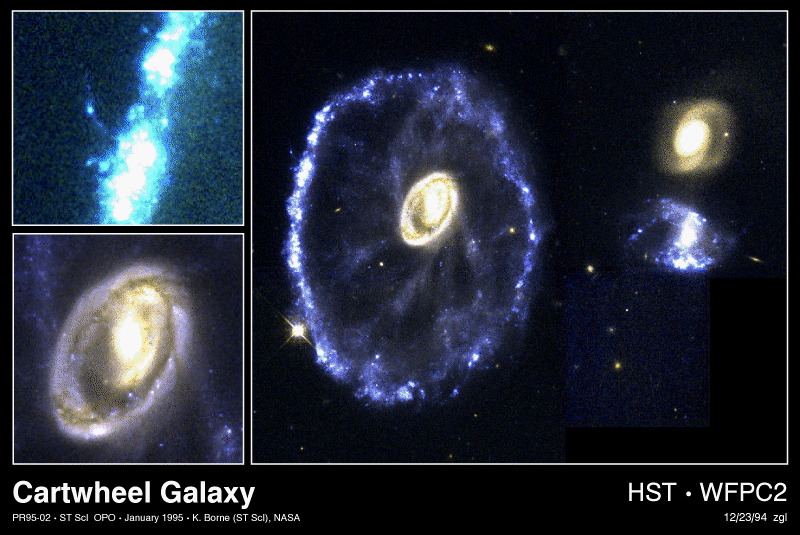
The way I obtained this image was to find it on the NASA Web site,
choose the image I wanted, at
http://oposite.stsci.edu/pubinfo/gif/Cartwheel.gif, right click on the
image,save it on my own computer. Then I selected the Image icon
in Composer, typed in the file name that I chose for this image,
Cartwheel.gif, and chose a method for the wrapping of the text around
this image. You can do the same thing with most images that you
find on the Internet, but you should be careful not to violate
copyright restrictions for their use.
Tables in
Composer
It is often useful to have a Table on your Web pages, especially if you
use them for syllabi or schedules. You can create a Table by
just clicking on the icon at the top of the page. The example
below is a five-row, three-column table, centered, with two different
colors, and spanning 50% of the width of the screen:
After you have created your table, you probably will want to edit
it. Most of the editing of tables in Composer is done by
right-clicking inside the table. This is how you add or delete
cells, row, or columns, or change the characteristics of the contents
of the table. (You can also have hyperlinks within tables.)
Using FTP
When you have finished working on your page, you
need to save it as a file on your computer. If this will be the
"front page" of your Web site, you should choose the name index.html or
index.htm for it. This default appellation will make it the page
that is opened by default when anyone browses your public
directory. Now, you need to send the file from the computer on
which you have been editing to the server on which your Web pages will
become available to the world. The way in which files are
normally sent from one computer to another is via the File Transfer
Protocol (FTP). FTP applications are widely and freely available
on the Internet. The one installed in our student computer
laboratories is Win_FTP_LE or some version of that, and it is found in
the Internet menu of Programs.
Back
to Chem/Phys 4802